Network isolation
Most MCP servers require network access to function properly, for example, to access APIs, download data, or communicate with other services. However, malicious or misconfigured servers can also exfiltrate sensitive data or download unwanted content.
When you install an MCP server in ToolHive, you can optionally enable network isolation. This feature restricts the MCP server's network access to only the resources you specify.
Network isolation currently supports HTTP and HTTPS connections only. Other protocols are not supported.
Network isolation works by routing outbound traffic through an HTTP proxy.
ToolHive automatically injects HTTP_PROXY, HTTPS_PROXY, and their lowercase
equivalents into the MCP server container pointing to the egress proxy. The MCP
server must respect these variables for outbound connections to succeed.
ToolHive blocks outbound traffic from servers that bypass standard proxy
environment variables (for example, servers that use raw TCP sockets or
hardcoded connections).
Enabling network isolation
Network isolation is available for local MCP servers installed from the registry or custom servers. It is not available for remote MCP servers, which are hosted and outside of ToolHive.
During the MCP server installation, select the Network isolation tab in the configuration form. Click the toggle to enable it.
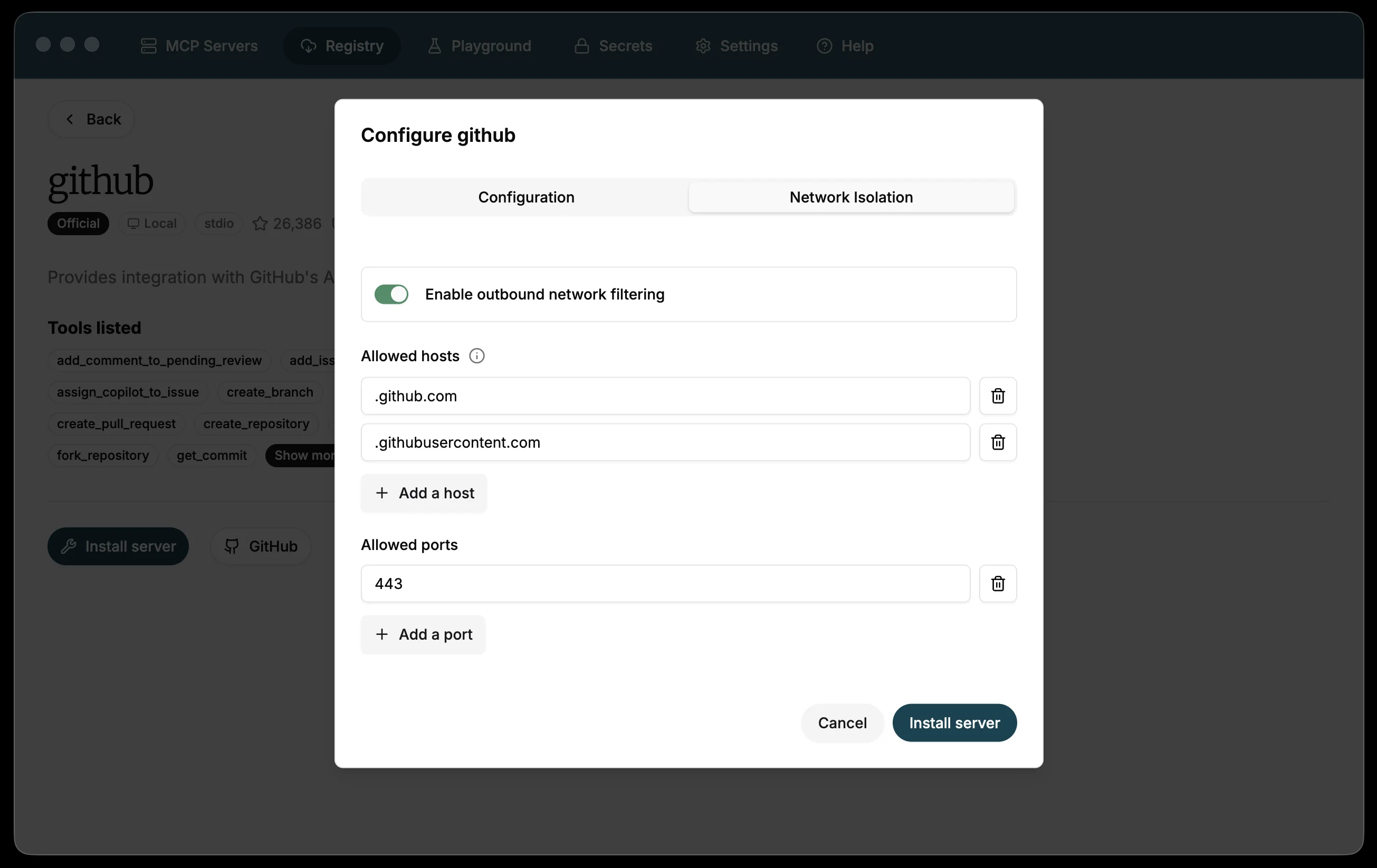
When you enable network isolation, any safe default configuration defined in the registry is pre-loaded in the form. You can accept these defaults or customize the settings to specify which hosts and ports the MCP server is allowed to access:
-
Allowed hosts:
A list of hostnames or IP addresses that the MCP server is allowed to access. This can include APIs, data sources, or other services that the MCP server needs to function properly.tipTo allow access to all subdomains under a specific domain, add a leading period (
.) in front of the hostname. For example, to allow access to all subdomains ofgithub.com, enter.github.comin the allowed hosts list. -
Allowed ports:
A list of ports that the MCP server is allowed to use for outgoing connections. This can help prevent the MCP server from accessing unauthorized services or resources. For example, port 443 is the default port for HTTPS connections.
If you do not specify any allowed hosts or ports, the MCP server will not be able to access any external resources, including the internet. This can be useful for MCP servers that do not require network access or for testing purposes.
Example configuration
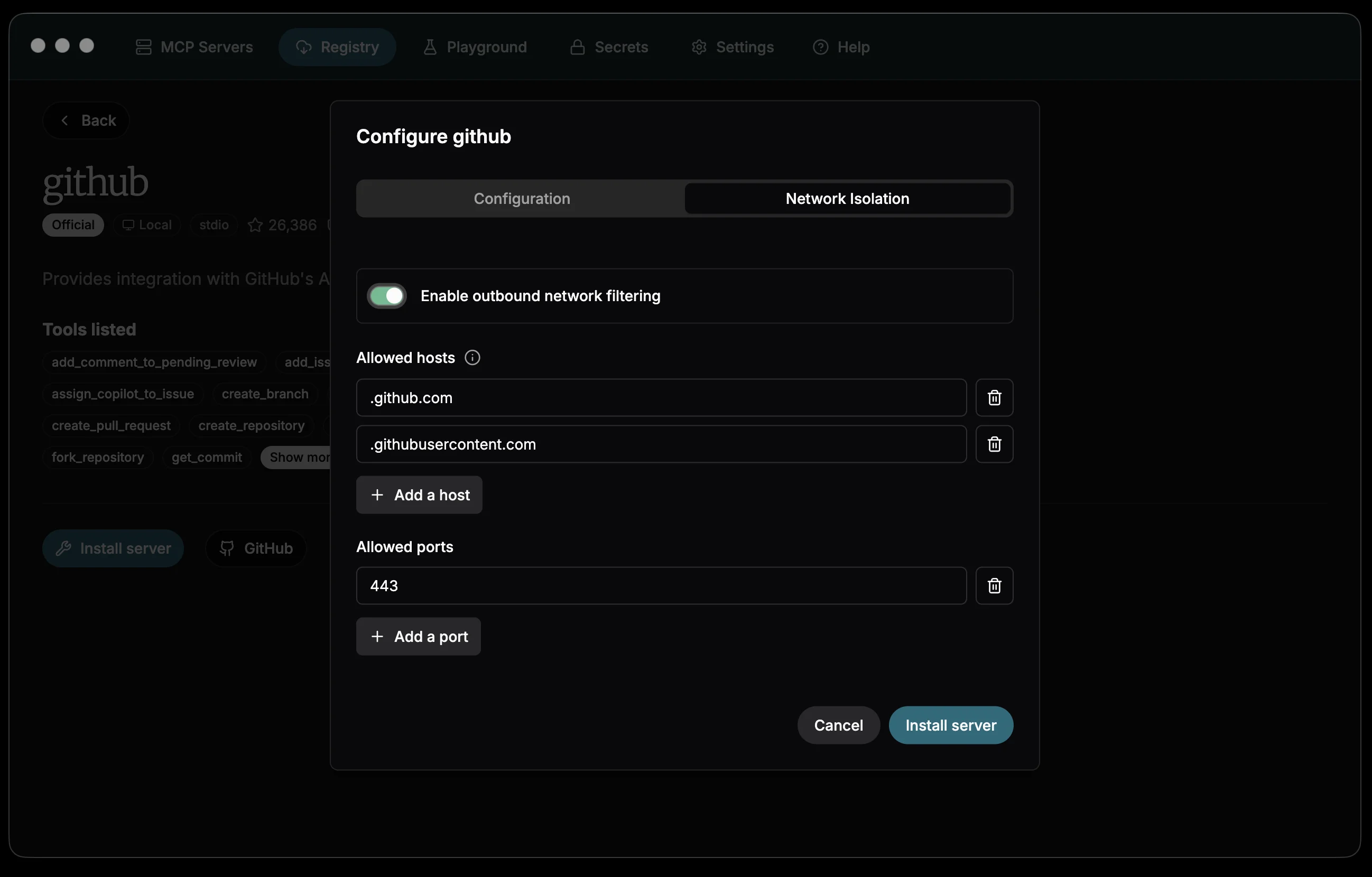
The configuration pictured below allows the MCP server to access
api.github.com and all subdomains of githubusercontent.com on port 443
(HTTPS):
Accessing other workloads on the same container network
To allow an MCP server to access other workloads on the same network, you need to configure network isolation to include the appropriate hostnames and ports. This is commonly needed when your MCP server needs to communicate with databases, APIs, or other services that are running on your local host during development.
For example, in Docker environments, you can add host.docker.internal to
access services on the host. host.docker.internal is a special hostname
provided by Docker that resolves to the host machine's IP address from within
containers.
- Allowed hosts:
host.docker.internal - Allowed ports:
3000
Next steps
- Customize which tools each server exposes to your AI clients
- Configure client access to connect your AI clients to ToolHive
Related information
- Run MCP servers
- Network isolation (CLI guide) for architecture details and advanced configuration
Troubleshooting
MCP server can't reach an external service
-
Check your allowed hosts and ports. Open the server's settings and confirm the hostname and port the server needs are listed. Network isolation only supports HTTP and HTTPS, so direct TCP connections (databases, custom protocols) won't work.
-
Check the server logs from the MCP servers page. Select the server, open the logs panel, and look for connection errors or denied requests.
-
If the logs show no outbound connection attempts at all, the server may not be respecting the
HTTP_PROXYandHTTPS_PROXYenvironment variables that ToolHive injects. Servers that bypass standard proxy variables (for example, those using raw TCP sockets or hardcoded connections) will fail regardless of your allowed hosts configuration. See Network isolation troubleshooting in the CLI guide for more detail on diagnosing this.